
Why I built this
Screen recorders have a data problem.
The recordings themselves are fine. The files land on disk, the quality is decent, the sharing links work. The problem is what happens after. A Loom video, an OBS capture, a QuickTime file. They all produce the same artifact: a blob a human has to watch in real time to extract anything from. There is no index, no searchable transcript.
To get any intelligence out of a recording, you have to pipe it through a separate transcription service, chunk it yourself, build an embedding pipeline, store it somewhere, wire up a query interface. That is a weekend of plumbing just to ask "what did I say about the API error at 4pm?"
If you are building agentic workflows, or you want your recordings to feed into one, every conventional screen recorder is a dead end. I have not seen one where "this recording is structured data for an agent" was the first design constraint. Most are built so a human can rewatch them.
That is what Bloom is for.
What Bloom actually does
Bloom's job is narrow. It runs the floating bar, the camera bubble, and the local library. Everything else (the native capture binary, the upload, the HLS stream, the transcript, the collection an agent reads from) is the VideoDB SDK. I did not write any of that, which is most of why this took a few days instead of a few months.
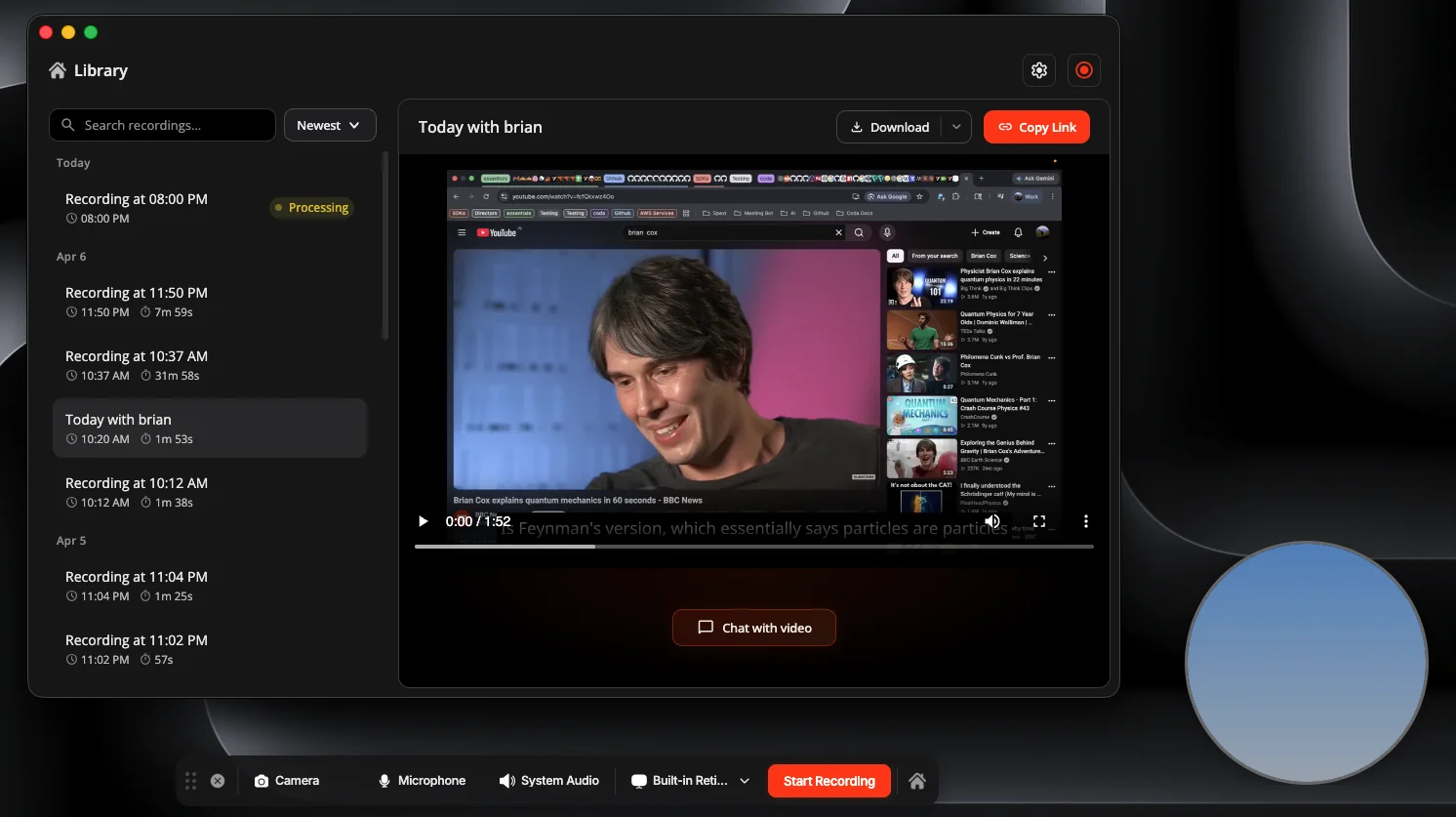
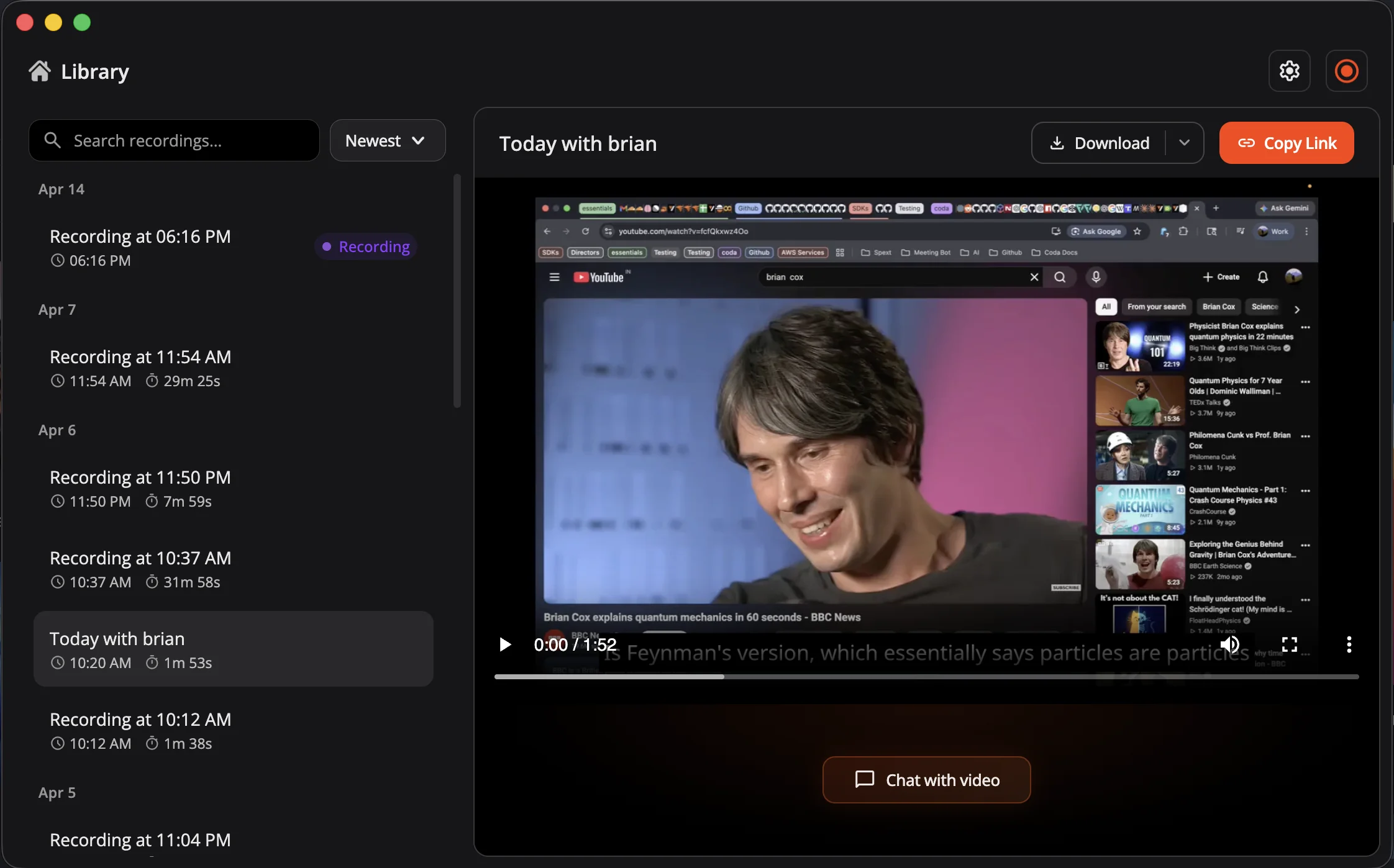
In practice it is three surfaces. A floating bar drops onto the desktop with record, pause, camera, and mic toggles. It is click-through everywhere except the controls, so it sits over your work without blocking it. Toggle the camera and a small draggable bubble shows up in the corner. Stop the recording and the Library opens: a date-grouped list on the left, an in-app player on the right, a Copy Link button that hands you a shareable URL, and a Chat with video button that drops you into the transcript.
Stop a recording and you watch a small state machine play out in the library row: capturing, then syncing while VideoDB exports the file server-side, then ready once the transcript and spoken-word index are written.
The code is open source on GitHub.
How the system is wired
The architectural bet is indexing-as-a-side-effect. The moment a recording exports, the intelligence layer fires automatically in the background: transcription, semantic indexing, and subtitles. The recording is agent-ready by the time the user looks back at the library. Everything below is in service of that single idea.
The rough shape: the display (with the camera bubble drawn on top of it), the microphone, and the system audio mix enter the VideoDB capture client as three independent channels. Each channel streams to VideoDB over its own WebSocket. The renderer is a handful of plain HTML pages, and the Electron main process owns everything that touches the OS or the SDK. The local library is a single sql.js database in userData. After a recording stops, a small polling service waits for VideoDB's server-side export to land, then the insights service adds the transcript and word index in the background. There is no orchestrator and no event bus, because there is not enough happening at once to need one.
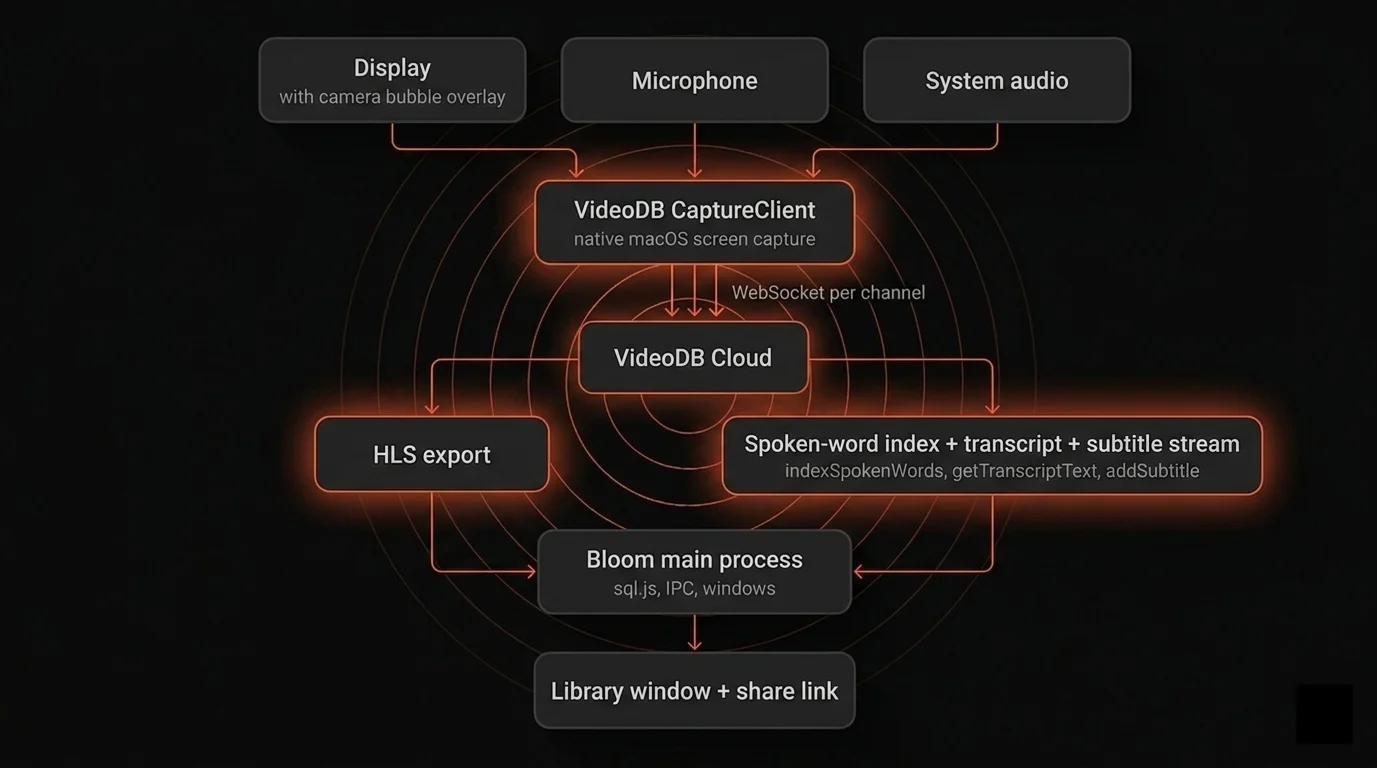
What is under the hood:
| Layer | Technology |
|---|---|
| Desktop runtime | Electron 39 |
| Renderer | Plain HTML and vanilla JS, no framework |
| IPC layer | Electron contextBridge + ipcMain |
| Database | sql.js (SQLite in WebAssembly), no native module |
| Capture | VideoDB SDK 0.2.6 (CaptureClient) |
| Indexing | VideoDB collection, indexSpokenWords, getTranscriptText, addSubtitle |
| Distribution | electron-builder, DMG (arm64 + x64), NSIS (x64 + arm64) |
Step 1: Capture with the VideoDB SDK
Bloom's recorder is the VideoDB SDK with one switch flipped.
Most apps wrapping CaptureClient turn on live transcription per audio channel: { type: 'audio', transcript: true }. Call.md does it that way. Bloom does not.
// src/main/ipc/capture.js
const captureChannels = [
  { channelId: channels.mics.default.id,        type: 'audio', store: true },
  { channelId: channels.systemAudio.default.id, type: 'audio', store: true },
  { channelId: channels.displays.default.id,    type: 'video', store: true, isPrimary: true },
];

await captureClient.startSession({ sessionId, channels: captureChannels });
store: true writes the bytes to the VideoDB collection without spinning up a per-channel transcription socket. The transcript still happens, just later, after the recording exports. indexSpokenWords() runs in the background once the file lands (Step 4). The live pipeline carries no LLM work, the runtime cost is one less websocket per audio channel, and the user has nothing to read mid-recording anyway.
A few smaller things the handler takes care of: a singleton CaptureClient (the binary does not like being instantiated twice in parallel), an immediate createRecording() row in SQLite so a mid-record crash does not lose it, and a macOS permission gate on systemPreferences.getMediaAccessStatus('screen') because TCC will not let you prompt for screen recording programmatically.
That bet is what makes Step 4 cheap. The intelligence layer is doing work the live pipeline never had to start.
Step 2: The floating bar and camera bubble
The floating bar is a 940 × 120 transparent BrowserWindow that sits at the bottom of the screen and stays out of the way of every other app. Two details make it work in practice.
Click-through is the default. The window is much larger than the visible pill inside it. Most of those 940 pixels are transparent and need to let mouse events fall through to whatever is underneath. setIgnoreMouseEvents(true, { forward: true }) does that. The renderer flips it back on mouseenter of the actual bar element, and back off on mouseleave:
// src/main/index.js
mainWindow.setIgnoreMouseEvents(true, { forward: true });

ipcMain.on('set-ignore-mouse', (_event, ignore) => {
  if (ignore) mainWindow.setIgnoreMouseEvents(true, { forward: true });
  else        mainWindow.setIgnoreMouseEvents(false);
});
That single toggle is what lets the bar be wide enough to give the controls room without the cursor getting trapped on its invisible padding when the user is trying to click the app behind it.

The bar does not show up in its own recordings. setContentProtection(true) tells macOS to exclude the window from screen capture. Bloom is in the business of recording the screen, and the recording UI showing up in the recording would be a small but recurring embarrassment. With content protection on, the user sees the bar live and the exported video does not contain it.
The camera bubble is a separate BrowserWindow, not part of the bar. 250 × 250 by default, resizable, transparent, anchored to the bottom-right corner with a 20px margin, alwaysOnTop. The renderer pulls a webcam stream into a <video> tag using getUserMedia() and that is the whole bubble. It moves independently because the user might want it anywhere on screen, and the bar's geometry has nothing to do with where a face fits naturally.
The macOS camera prompt fires the first time the user toggles the bubble on:
// src/main/ipc/camera.js
const cameraStatus = systemPreferences.getMediaAccessStatus('camera');
if (cameraStatus !== 'granted') {
  const granted = await systemPreferences.askForMediaAccess('camera');
  if (!granted) {
    shell.openExternal('x-apple.systempreferences:com.apple.preference.security?Privacy_Camera');
    return { success: false, error: 'Camera permission denied' };
  }
}
cameraWindow.showInactive();
showInactive() is the small detail worth calling out. It shows the bubble without stealing focus, so the user can keep typing in the app they were in before they hit the camera button. Stealing focus there would feel like the recorder pushing itself in front of the work.
Step 3: The library
The library is a separate BrowserWindow that opens when the user stops a recording. On the left, recordings grouped by date, with search across names and transcripts. On the right, the in-app player, a Copy Link button, a Chat with video button, and download buttons for the video and the transcript.
The whole window reads off one column in SQLite: insights_status. Every row is in one of five states, transitioning from recording through processing and indexing to ready. failed is reachable from either of the middle two when something on the VideoDB side returns an error. The capturing and syncing badges in the library row are these states under friendlier names.
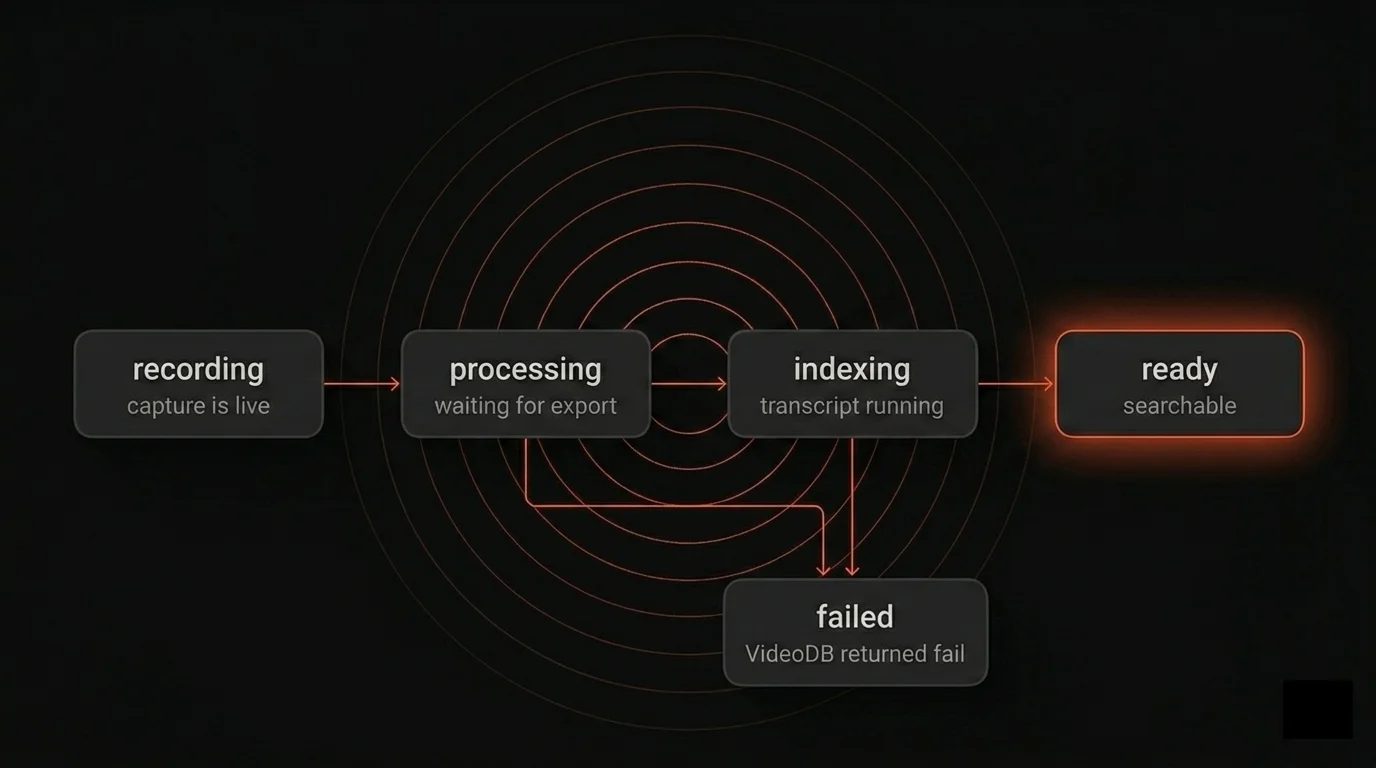
The video is playable from indexing onward; the Chat with video button only lights up at ready. That single field drives the UI status pill, the polling loop, the "what should this row do next" recovery on startup, and the manual refresh button. One source of truth means the screens cannot disagree about a recording.
Mid-session crash recovery is the part I am most happy with. When the user hits stop, syncCaptureSession() starts polling for the export every 10 seconds, up to 60 attempts (about 10 minutes). If the user quits Bloom while it is still polling, nothing is lost. On the next launch, syncUnresolvedRecordings() walks the SQLite rows in non-terminal states and dispatches based on what is missing:
// src/main/services/session.service.js
for (const rec of unresolved) {
  if (rec.video_id && rec.insights_status === 'indexing') {
    // Has the video but indexing did not finish, retry indexing
    processIndexingBackground(rec.id, rec.video_id, apiKey);
  } else {
    // No video yet, re-poll the export
    await syncCaptureSession(rec.session_id, apiKey, videodbService);
  }
}
There is also a Refresh button in the library wired to checkPendingRecordings(). Same dispatch, no polling loop, for users who do not want to wait for the next startup. Three recovery paths, one column, one decision tree.
Chat with video is the smallest piece of work in the post. When the recording reaches ready, the button is just an external link:
// src/main/ipc/history.js
const url = `https://chat.videodb.io?video_id=${videoId}&collection_id=${collectionId}`;
await shell.openExternal(url);
VideoDB hosts the chat UI. Bloom hands off two IDs and gets out of the way. Most of the post-recording intelligence lives at chat.videodb.io, not in Bloom.
Step 4: From recording to agent-ready
Once the export lands and the row flips to indexing, indexVideo() runs in the background. The whole function is three SDK calls.
// src/main/services/insights.service.js
async function indexVideo(videoId, apiKey) {
  const conn = connect({ apiKey });
  const coll = await conn.getCollection();
  const video = await coll.getVideo(videoId);

  // 1. Build the searchable spoken-word index
  try {
    await video.indexSpokenWords();
  } catch (err) {
    // No speech detected. Recording is fine, just nothing to transcribe.
    return { transcript: null, subtitleUrl: null };
  }

  // 2. Pull the full transcript text
  const transcript = await video.getTranscriptText();

  // 3. Generate a styled subtitled stream
  const subtitleUrl = await video.addSubtitle(SUBTITLE_STYLE);

  return { transcript, subtitleUrl };
}
Three details worth pulling out.
indexSpokenWords() is the call that earns the "agent-ready" label. It tells VideoDB to transcribe the audio and build a semantic index over the content. After this runs, any agent that knows the collection ID and has the API key can do this:
const video = await collection.getVideo(videoId);
const results = await video.search("what did I say about the API error at 4pm");
// results: ranked, timestamped, playable clips
No separate vector store. No embedding pipeline. No chunking strategy I had to invent. The index lives with the video in the VideoDB collection, and search happens through the same SDK that captured it.
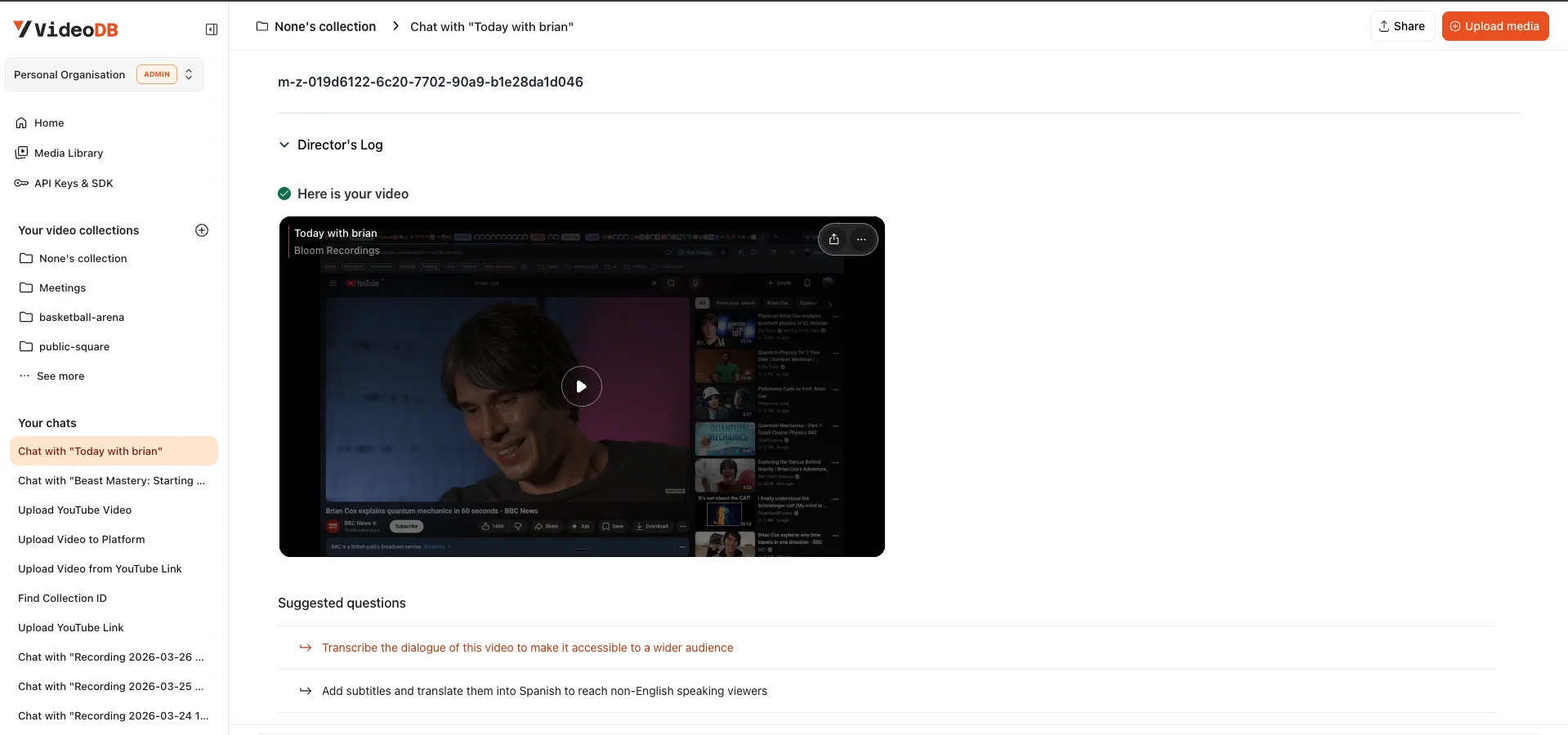
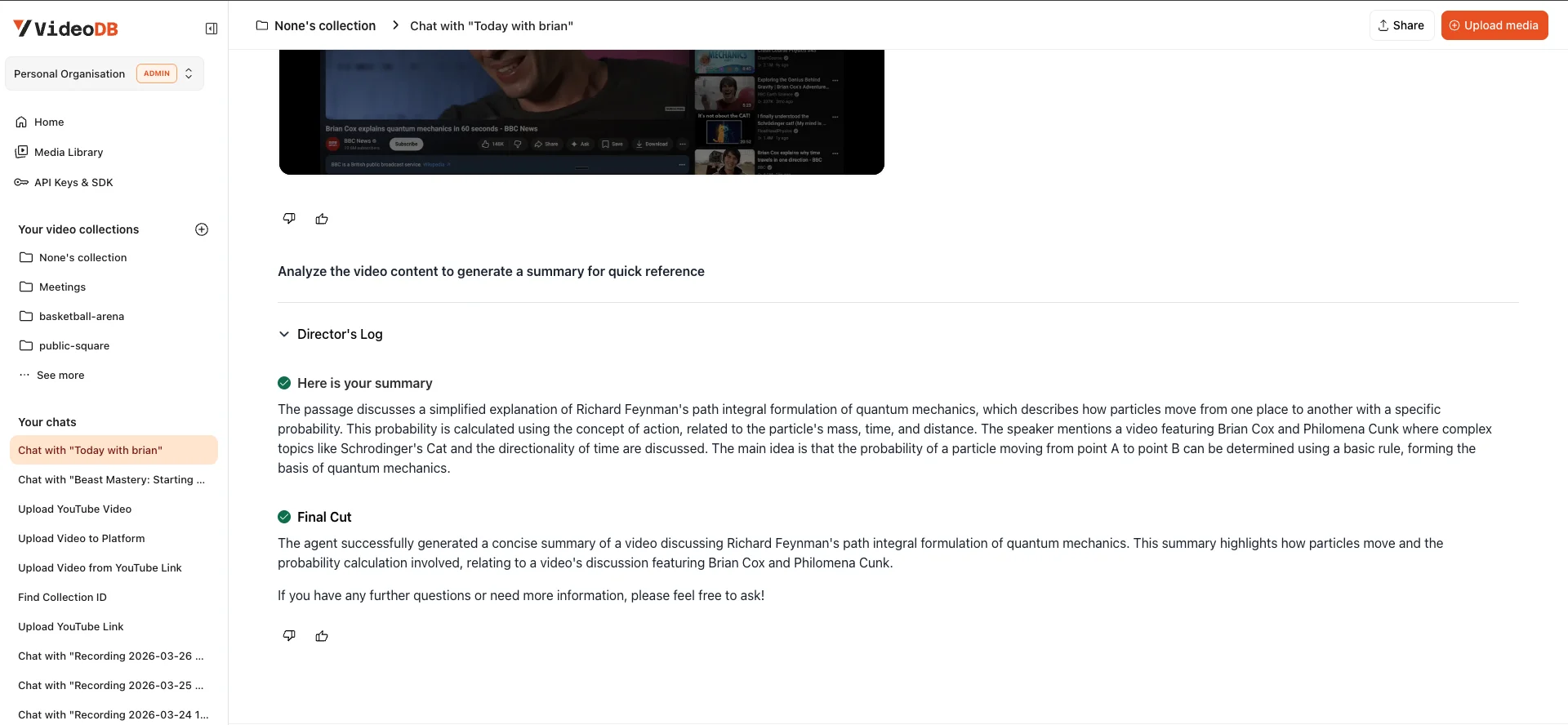
The empty-speech path returns early. If indexSpokenWords() throws because there are no spoken words (a silent debug session, an animation walkthrough, watching someone code without narration), the function returns { transcript: null, subtitleUrl: null } rather than failing the whole job. The recording is still in the library, still playable. It just is not text-searchable, which is the right behavior for a video that has no text in it.
The transcript is stored locally. getTranscriptText() returns a string that processIndexingBackground writes into the recording row's insights column as JSON. The library can show it and Bloom can answer "give me the transcript" without round-tripping VideoDB. This is also why Bloom did not need transcript: true on the audio channels in Step 1. The transcript is one SDK call away once the file exports.
The styled subtitle stream from addSubtitle() becomes the row's stream_url, replacing the raw HLS URL. The library player picks it up automatically. The user did not ask for subtitles and gets them anyway.
Local-first storage
Everything Bloom owns lives on the user's machine. Recordings, transcripts, auth config, logs.
~/Library/Application Support/Bloom/
├── bloom.db
├── config.json
└── app.log
The schema underneath is small: a users table with the API key and access token, and a recordings table with one row per session and the columns the library reads off (session_id, video_id, collection_id, stream_url, insights_status, insights, created_at, name, duration).
The only outbound traffic is the capture streams going to VideoDB and the SDK calls for indexing. Both authenticate with the user's own VideoDB API key, and the resulting recordings land in a VideoDB collection the user owns. Nothing is shared, nothing is forwarded, nothing leaves the machine without an explicit user action like Copy Link or Download.
This was not a privacy posture so much as a constraint match. Builders record sessions that have credentials, keys, and customer data on screen for a few seconds at a time. A recorder that shipped that off to a vendor database would be unusable for the actual job. So the data sits on disk, and the user copies a link or downloads a file when they specifically want to.
What is next
A local API surface for agents. The recordings are already queryable via the VideoDB API, but an agent like Claude Code should not need the user's VideoDB key to ask "what did I record at 4pm?" What does not exist yet is a thin local endpoint that exposes the library and its transcripts to tools running on the same machine — a small HTTP or Unix-socket API that lets any local agent search, cite, and clip from the recording history.
Linux support. Bloom ships macOS and Windows builds today. Linux is the obvious missing platform. Electron runs fine on Linux, but screen capture and system audio behave differently across display servers (X11 vs Wayland) and PipeWire vs PulseAudio. The work is less about Bloom and more about testing the VideoDB capture binary on those paths, then adding an AppImage or .deb distribution target to electron-builder.
A few smaller gaps on the reliability side:
- Resumable uploads. If Bloom crashes mid-recording, the bytes already streamed to VideoDB are kept, but any in-flight chunk is lost. A resume-from-checkpoint pass on the next launch would close that gap.
- Windows permission surfacing. macOS gates capture at the TCC level and Bloom checks that explicitly. On Windows the permission block is skipped because there is no OS-level equivalent. If a user denies microphone access, the recording fails silently. Detecting that and showing a real error is on the list.
- Capture error visibility.
CaptureClient.on('error', ...)writes toconsole.errortoday and the renderer never sees it. Pushing those errors into the recording row would replace a few "why did this fail?" support questions with a string the user can read.
Try it
One command on macOS:
curl -fsSL https://artifacts.videodb.io/bloom/install | bash
The script picks the right architecture, downloads the DMG, mounts it, copies the app to /Applications, and clears the quarantine bit so macOS does not block first launch.
From source on any platform:
git clone https://github.com/video-db/bloom.git
cd bloom
npm install
npm start
Launch Bloom, paste a VideoDB API key (free at console.videodb.io), grant Screen Recording and Microphone permissions when prompted, and the floating bar drops in at the bottom of the screen.
Bloom is one piece of a broader bet: that recordings should be structured, searchable artifacts, not opaque files. chat.videodb.io is the transcript-grounded chat interface that makes them conversational. If any of that is interesting, the code is on GitHub and the community is on Discord.